

Long-time users of the Open Text Analytics Database (Vertica) are likely familiar with the Admintools GUI. In this blog post, we introduce VCluster—a next-generation administrative utility designed to replace Admintools. VCluster offers both a command-line interface (CLI) and a modern web-based UI, providing a faster, more reliable experience. The VCluster CLI is primarily targeted at managing Eon Mode databases. Unlike its predecessor, VCluster eliminates the need for node-to-node SSH connections by leveraging a REST API to manage the cluster efficiently.
This blog post guides you through converting an existing database managed by Admintools to VCluster and introduces you to the features of the VCluster Web UI.
|
Note: VCluster is primarily designed for EON Mode databases. However, it will work for Enterprise Mode as well. |
Here’s a comparison table highlighting the key differences between VCluster and Admintools in Open Text Analytics Database (Vertica):
|
Feature / Capability |
VCluster |
Admintools |
|
Interface Options |
CLI and Web UI |
CLI and GUI (older style) |
|
Primary Use Case |
Optimized for Eon Mode databases |
Designed for Enterprise Mode (and works with EON Mode as well) |
|
Communication Method |
REST API (no SSH required) |
SSH-based node-to-node communication |
|
Performance |
Faster and more reliable |
Slower, especially in large or cloud clusters (due to SSH dependency) |
|
Cloud-Native Compatibility |
High – designed for modern, elastic environments |
Limited – not fully optimized for cloud deployments |
|
Logging and Error Reporting |
Enhanced and more structured |
Basic logging |
|
Extensibility |
Future-ready, easier to integrate with DevOps |
Limited extensibility |
|
User Experience |
Modern, intuitive UI and consistent CLI |
Older interface |
|
Maintenance and Updates |
Actively developed and improved |
Legacy tool, limited updates |
Let’s walk through the steps to create a 3-node VMart database using Admintools in Vertica 25.2, with MinIO configured as the communal storage
Prerequisites
Before you begin, ensure the following:
- Vertica 25.2 is installed on all nodes.
- MinIO is set up and accessible (with access key, secret key, and endpoint URL).
- You have passwordless SSH access to all nodes (required for Admintools).
- A list of hostnames or IPs for your cluster nodes.
- MinIO credentials and bucket URL (e.g., s3://mybucket/vmart).
- Create the Database
a. Users can always create a new database using VCluster. It's encouraged to use VCluster to create a database.
b. The AdminTools created database is just as a setup for later migrating to VCluster instructions.
Use the following command to create the database
|
/opt/vertica/bin/admintools -t create_db -x auth_params.conf --depot-path=/home/dbadmin/migrate_to_vcluster --communal-storage-location=s3://sanumula/migrate_to_vcluster --shard-count=6 -s 10.50.50.141,10.50.50.142,10.50.50.143 -d migrate_to_vcluster -l amylicense.key --force-removal-at-creation -p 'password' Creating database migrate_to_vcluster STATUS: vertica.engine.api.bootstrap_catalog is still running on 1 host: 10.50.50.141 as of 2025-05-20 18:30:42. See /opt/vertica/log/adminTools.log for full details. Starting bootstrap node v_migrate_to_vcluster_node0001 (10.50.50.141) Starting nodes: v_migrate_to_vcluster_node0001 (10.50.50.141) Starting Vertica on all nodes. Please wait, databases with a large catalog may take a while to initialize. Creating database nodes Creating node v_migrate_to_vcluster_node0002 (host 10.50.50.142) Creating node v_migrate_to_vcluster_node0003 (host 10.50.50.143) Generating new configuration information Stopping single node db before adding additional nodes. Database shutdown complete Starting all nodes Start hosts = ['10.50.50.141', '10.50.50.142', '10.50.50.143'] Starting nodes: v_migrate_to_vcluster_node0001 (10.50.50.141) v_migrate_to_vcluster_node0002 (10.50.50.142) v_migrate_to_vcluster_node0003 (10.50.50.143) Starting Vertica on all nodes. Please wait, databases with a large catalog may take a while to initialize. Node Status: v_migrate_to_vcluster_node0001: (DOWN) v_migrate_to_vcluster_node0002: (DOWN) v_migrate_to_vcluster_node0003: (DOWN) Node Status: v_migrate_to_vcluster_node0001: (DOWN) v_migrate_to_vcluster_node0002: (DOWN) v_migrate_to_vcluster_node0003: (DOWN) Node Status: v_migrate_to_vcluster_node0001: (DOWN) v_migrate_to_vcluster_node0002: (DOWN) v_migrate_to_vcluster_node0003: (DOWN) Node Status: v_migrate_to_vcluster_node0001: (UP) v_migrate_to_vcluster_node0002: (UP) v_migrate_to_vcluster_node0003: (UP) Creating depot locations for 3 nodes Communal storage detected: rebalancing shards
Waiting for rebalance shards. We will wait for at most 36000 seconds. Installing ComplexTypes package Success: package ComplexTypes installed Installing DelimitedExport package Success: package DelimitedExport installed Installing JsonExport package Success: package JsonExport installed Installing MachineLearning package STATUS: vertica.engine.api.vsql_script.module is still running on 1 host: 10.50.50.141 as of 2025-05-20 18:32:00. See /opt/vertica/log/adminTools.log for full details. STATUS: vertica.engine.api.vsql_script.module is still running on 1 host: 10.50.50.141 as of 2025-05-20 18:32:11. See /opt/vertica/log/adminTools.log for full details. Success: package MachineLearning installed Installing OrcExport package Success: package OrcExport installed Installing ParquetExport package Success: package ParquetExport installed Installing VFunctions package Success: package VFunctions installed Installing approximate package Success: package approximate installed Installing flextable package Success: package flextable installed Installing kafka package Success: package kafka installed Installing logsearch package Success: package logsearch installed Installing place package Success: package place installed Installing txtindex package Success: package txtindex installed Installing voltagesecure package Success: package voltagesecure installed Installing kubernetes package Success: package kubernetes installed Syncing catalog on migrate_to_vcluster with 2000 attempts. Database creation SQL tasks completed successfully. Database migrate_to_vcluster created successfully.
|
- Steps to Load VMart Data
Let's proceed with loading the VMart data into your Vertica database.
a. Define the database schema
-
- Vertica provides a sample dataset called VMart.
- The vmart_define_schema.sql script runs a script that defines the VMart schema and creates tables.
|
[dbadmin@sanumula01 ~]$ cd /opt/vertica/examples/VMart_Schema [dbadmin@sanumula01 VMart_Schema]$ vsql Password: Welcome to vsql, the Vertica Analytic Database interactive terminal.
Type: \h or \? for help with vsql commands \g or terminate with semicolon to execute query \q to quit
migrate_to_vcluster=> \i vmart_define_schema.sql CREATE SCHEMA CREATE SCHEMA CREATE TABLE CREATE TABLE CREATE TABLE CREATE TABLE CREATE TABLE CREATE TABLE CREATE TABLE CREATE TABLE CREATE TABLE ALTER TABLE CREATE TABLE CREATE TABLE ALTER TABLE CREATE TABLE ALTER TABLE CREATE TABLE CREATE TABLE CREATE TABLE ALTER TABLE
|
b. Generate data
-
- You can generate the sample data using vmart_gen.
|
[dbadmin@sanumula01 ~]$ cd /opt/vertica/examples/VMart_Schema [dbadmin@sanumula01 VMart_Schema]$ vsql Password: Welcome to vsql, the Vertica Analytic Database interactive terminal.
Type: \h or \? for help with vsql commands \g or terminate with semicolon to execute query \q to quit
migrate_to_vcluster=> \i vmart_define_schema.sql CREATE SCHEMA CREATE SCHEMA CREATE TABLE CREATE TABLE CREATE TABLE CREATE TABLE CREATE TABLE CREATE TABLE CREATE TABLE CREATE TABLE CREATE TABLE ALTER TABLE CREATE TABLE CREATE TABLE ALTER TABLE CREATE TABLE ALTER TABLE CREATE TABLE CREATE TABLE CREATE TABLE ALTER TABLE
|
c. Load the data:
- You can load data into the VMart tables by executing the vmart_load_data.sql script, which contains the necessary COPY commands to populate the schema with sample data.
|
migrate_to_vcluster=> \i vmart_load_data.sql
Rows Loaded ------------- 1826 (1 row)
Rows Loaded ------------- 60000 (1 row)
Rows Loaded ------------- 250 (1 row)
Rows Loaded ------------- 1000 (1 row)
Rows Loaded ------------- 50 (1 row)
Rows Loaded ------------- 50000 (1 row)
Rows Loaded ------------- 10000 (1 row)
Rows Loaded ------------- 100 (1 row)
Rows Loaded ------------- 100 (1 row)
Rows Loaded ------------- 1000 (1 row)
Rows Loaded ------------- 200 (1 row)
Rows Loaded ------------- 5000000 (1 row)
Rows Loaded ------------- 300000 (1 row)
Rows Loaded ------------- 5000000 (1 row)
Rows Loaded ------------- 300000 (1 row) migrate_to_vcluster=> |
d. Verify the Load
After loading, you can run a quick check:
|
migrate_to_vcluster=> SELECT fat_content FROM ( SELECT DISTINCT fat_content FROM product_dimension WHERE department_description IN ('Dairy') ) AS food ORDER BY fat_content LIMIT 5;
fat_content ------------- 80 81 82 83 84 (5 rows)
|
3. Convert an Admintools-Managed Database to VCluster
VCluster CLI is a Go-based command-line utility that interfaces with a RESTful API for database administration. The API endpoints are exposed by NMA and secured via HTTPS Services.
Analytics Database (Vertica) provides built-in function called manage_config, which simplifies the process of migrating an existing database managed by Admintools to the VCluster framework.
To ensure proper communication and functionality of VCluster components, the following ports must be open and accessible:
- Port 5554 – Used by the Node Management Agent (NMA) for REST API-based cluster management over HTTPS.
- Port 8665 – Used by the VCluster Web Server to serve the Web UI over HTTPS.
VCluster relies on NMA (Node Management Agent). So please ensure to start NMA on all the nodes using the following command if it is not running already.
The below command helps you start on all nodes at once if you provide the IP's for HOST_LIST variables.
for x in $HOST_LIST; do ssh $x /opt/vertica/bin/manage_node_agent.sh start node_management_agent; done
|
[dbadmin@sanumula03 ~]$ /opt/vertica/bin/manage_node_agent.sh start node_management_agent Doing action start Using binary name node_management_agent Looking for node_management_agent in /opt/vertica/bin Verifying no running node management agent process Starting the node management agent Started process 1415014 |
Once NMA is running on all nodes, you can migrate your existing Admintools-managed database to the VCluster framework using the manage_config utility.
This command:
- Converts the current database configuration to be compatible with VCluster.
- Registers the database with the VCluster Framework.
|
[dbadmin@sanumula01 ~]$ vcluster manage_config recover --db-name migrate_to_vcluster --hosts 10.50.50.141,10.50.50.142,10.50.50.143 --catalog-path /home/dbadmin --password password ✔ Collect node information ✔ Collect cluster information ✔ Update node state from running database ✔ Check NMA service health ✔ Read Vertica version [INFO] Successfully recovered configuration file for database migrate_to_vcluster at /opt/vertica/config/vertica_cluster.yaml
|
Here is sample configuration YAML file which is used by VCluster. This file serves a similar purpose to the traditional admintools.conf used in Admintools-managed environments.
|
[dbadmin@sanumula01 config]$ cat vertica_cluster.yaml configFileVersion: "1.0" dbName: migrate_to_vcluster nodes: - name: v_migrate_to_vcluster_node0001 address: 10.50.50.141 subcluster: default_subcluster catalogPath: /home/dbadmin/migrate_to_vcluster/v_migrate_to_vcluster_node0001_catalog dataPath: /home/dbadmin/migrate_to_vcluster/v_migrate_to_vcluster_node0001_data depotPath: /home/dbadmin/migrate_to_vcluster/migrate_to_vcluster/v_migrate_to_vcluster_node0001_depot sandbox: "" - name: v_migrate_to_vcluster_node0002 address: 10.50.50.142 subcluster: default_subcluster catalogPath: /home/dbadmin/migrate_to_vcluster/v_migrate_to_vcluster_node0002_catalog dataPath: /home/dbadmin/migrate_to_vcluster/v_migrate_to_vcluster_node0002_data depotPath: /home/dbadmin/migrate_to_vcluster/migrate_to_vcluster/v_migrate_to_vcluster_node0002_depot sandbox: "" - name: v_migrate_to_vcluster_node0003 address: 10.50.50.143 subcluster: default_subcluster catalogPath: /home/dbadmin/migrate_to_vcluster/v_migrate_to_vcluster_node0003_catalog dataPath: /home/dbadmin/migrate_to_vcluster/v_migrate_to_vcluster_node0003_data depotPath: /home/dbadmin/migrate_to_vcluster/migrate_to_vcluster/v_migrate_to_vcluster_node0003_depot sandbox: "" eonMode: true communalStorageLocation: s3://sanumula/migrate_to_vcluster ipv6: false
|
Let’s run the vcluster list_all_nodes command to review the current status of all nodes in the database.
|
[dbadmin@sanumula01 ~]$ vcluster list_all_nodes --password 'password' --config /opt/vertica/config/vertica_cluster.yaml ✔ Collect node information ✔ Collect cluster information ✔ Update node state from running database ✔ Check NMA service health ✔ Read Vertica version [ { "address": "10.50.50.141", "name": "v_migrate_to_vcluster_node0001", "state": "UP", "catalog_path": "/home/dbadmin/migrate_to_vcluster/v_migrate_to_vcluster_node0001_catalog/Catalog", "subcluster": "default_subcluster", "sandbox": "", "is_primary": true, "version": "v25.2.0-0" }, { "address": "10.50.50.142", "name": "v_migrate_to_vcluster_node0002", "state": "UP", "catalog_path": "/home/dbadmin/migrate_to_vcluster/v_migrate_to_vcluster_node0002_catalog/Catalog", "subcluster": "default_subcluster", "sandbox": "", "is_primary": true, "version": "v25.2.0-0" }, { "address": "10.50.50.143", "name": "v_migrate_to_vcluster_node0003", "state": "UP", "catalog_path": "/home/dbadmin/migrate_to_vcluster/v_migrate_to_vcluster_node0003_catalog/Catalog", "subcluster": "default_subcluster", "sandbox": "", "is_primary": true, "version": "v25.2.0-0" } ]
|
Now Let us quickly verify the data in our database.
|
migrate_to_vcluster=> SELECT fat_content FROM ( SELECT DISTINCT fat_content FROM product_dimension WHERE department_description IN ('Dairy') ) AS food ORDER BY fat_content LIMIT 5;
fat_content ------------- 80 81 82 83 84 (5 rows)
|
Now that our database is migrated to VCluster, let us explore the Vcluster Web UI.
VCluster Web UI
To access the VCluster Web UI, Launch the VCluster web server on a single node only. Please don’t start it on multiple nodes.
|
[dbadmin@sanumula01 ~]$ /opt/vertica/bin/manage_vcluster_server.sh start vcluster_server Doing action start Using binary name vcluster_server Looking for vcluster_server in /opt/vertica/bin Starting vcluster server Started process 2804506
|
Download the /opt/vertica/config/vcluster_server/admin.p12 certificate to the local machine where you intend to access the VCluster Web UI. Next, import the admin.p12 certificate into your browser. The following screenshots apply to Google Chrome on a Windows machine.
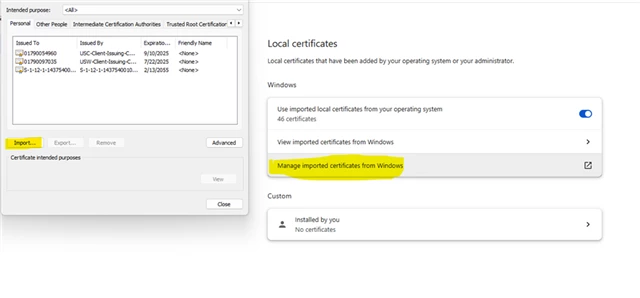
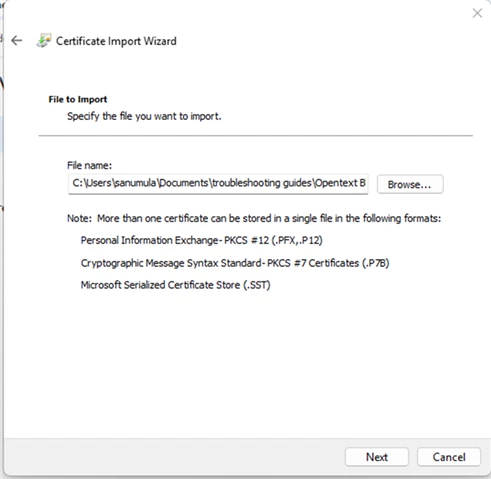
Click 'Import' as shown above to launch the certificate import wizard. In the wizard, click 'Browse', select the admin.p12 file, and follow the on-screen prompts to complete the import. When prompted, enter the certificate password shared with you by the sales/support team.
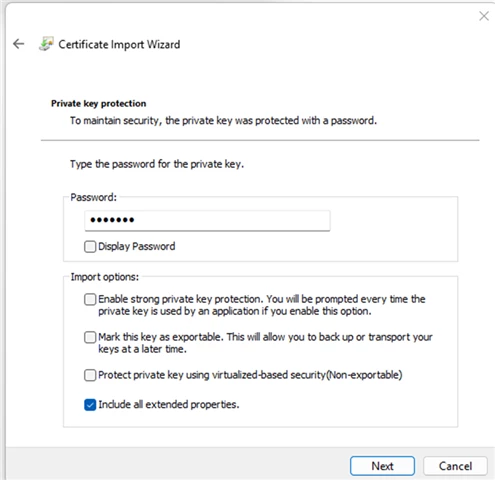
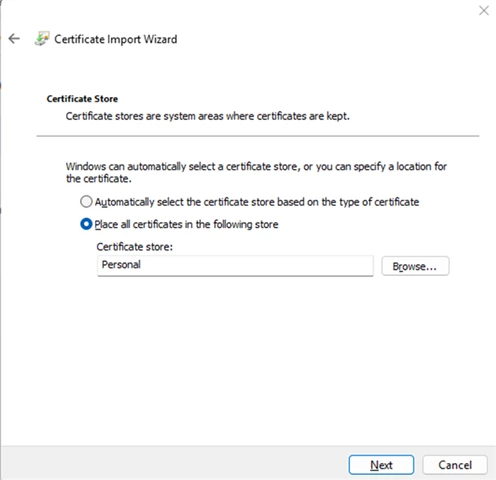
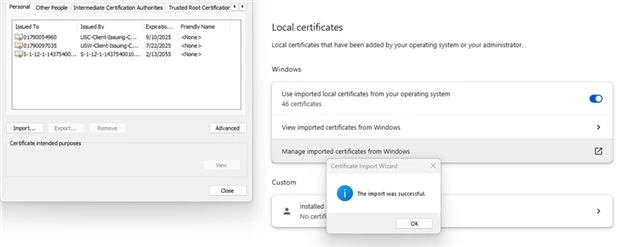
The VCluster Web Server leverages an embedded HTTPS service, which requires TLS authentication for secure access. To enable browser-based access, configure TLS authentication and grant the TLS authentication method to the PUBLIC role.
|
[dbadmin@sanumula01 vcluster_server]$ vsql -c "create authentication tls_for_all method 'tls' host tls '0.0.0.0/0';" Password: CREATE AUTHENTICATION [dbadmin@sanumula01 vcluster_server]$ vsql -c "grant authentication tls_for_all to public;" Password: GRANT AUTHENTICATION
|
Open your browser and navigate to the VCluster Web UI by entering the server’s hostname or IP address followed by port 8665 (e.g., https://<hostname>:8665). Please use the hostname or the IP address where the VCluster Webserver was launched. When prompted, accept the certificate to proceed.
This is the VCluster Web UI home page. The left-hand navigation panel provides access to various functional sections. In the bottom-right corner, a built-in chatbot is available to assist with executing a range of database operations.
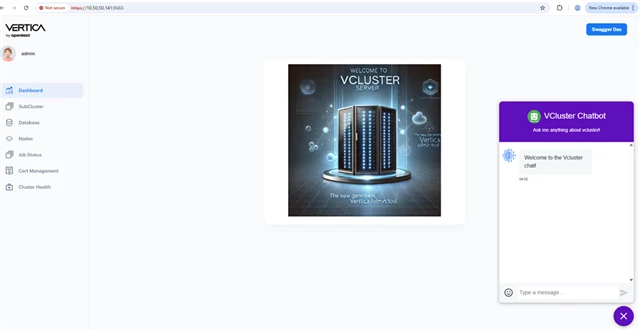
Now let us use the VCluster Chatbot to initiate a database shutdown. It will display a list of available actions—here, it suggested the StopDB operation.
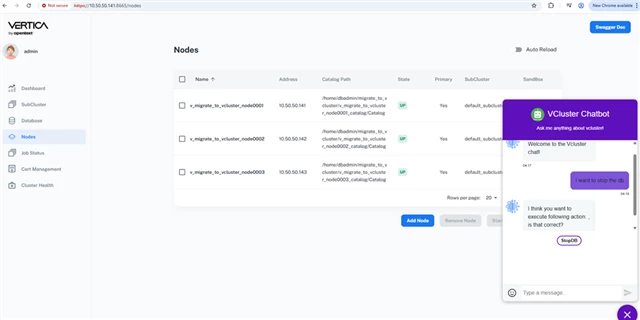
Upon selecting the StopDB action, the chatbot will redirect you to the corresponding page where you can stop the database.
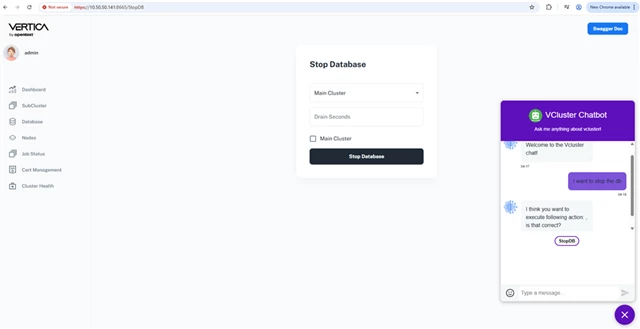
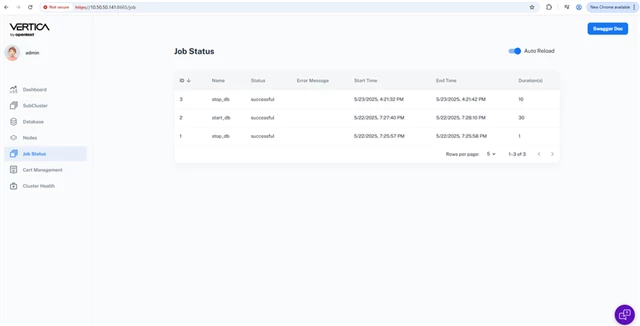
Choose the Desired Cluster and Click on “Stop Database”. If you want to delay the shutdown to allow active sessions to complete, enter the desired wait time (in seconds) in the Drain Seconds field. After initiating the shutdown, you will be redirected to the Job Status page. This page displays real-time information about the Stop Database operation, including progress, logs, and final status.
Now let us use the VCluster Chatbot to start the database.
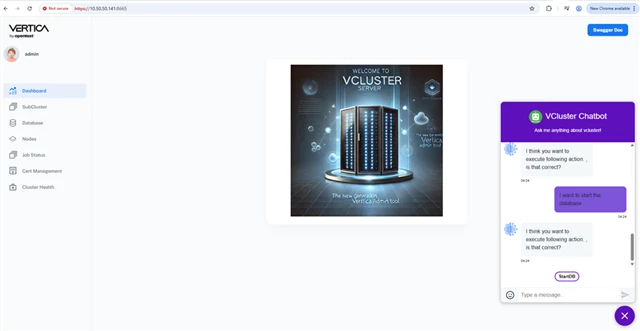
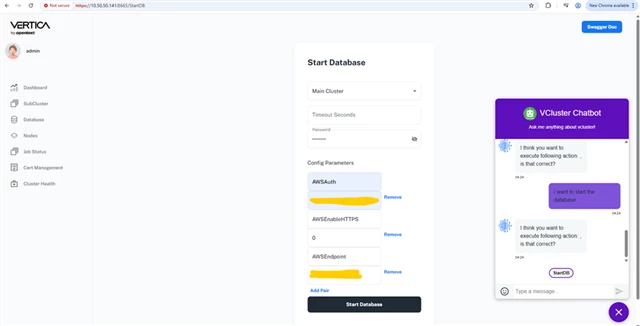
After selecting the StartDB action in the chatbot, you will be redirected to the Start Database page.
- Enter the dbadmin password in the designated field.
- If your database was configured with an on-prem S3-compatible storage solution (e.g., MinIO, PureStorage), provide the following s3 parameters:
- AWSAuth – Your S3 access credentials.
- AWSEndpoint – The endpoint URL of your S3-compatible service.
- AWSEnableHTTPS – Set this based on whether your S3 service uses HTTPS (true or false).
- AWSCAFile – Path to the certificate file
Click “Start Database” to initiate the startup process.
You will be redirected to the Job Status page, where you can track the progress and outcome of the Start Database operation.
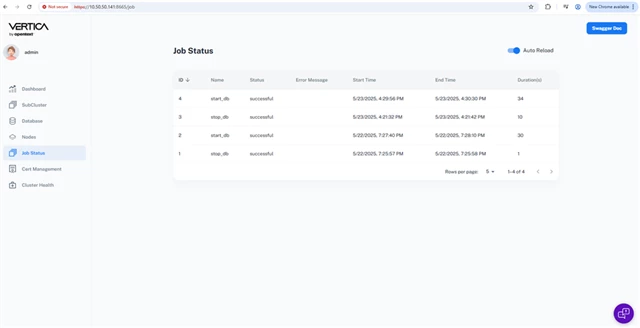
After initiating the Start Database operation, the Job Status page confirms that the database startup has completed successfully.
To further validate:
- Navigate to the Nodes section in the VCluster Web UI.
- Review the status indicators for each node.
- The UI should reflect that the database is UP and operational across all participating nodes.
This confirms that the database has been successfully brought online.
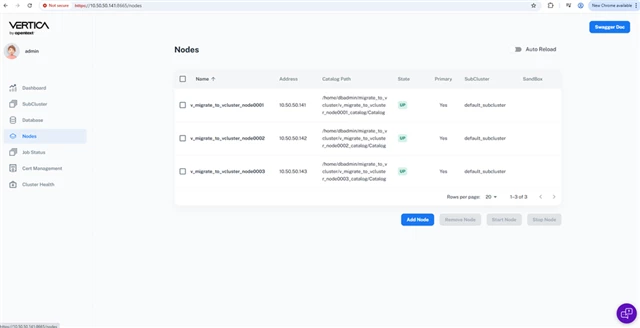
Feel free to explore the various features available in the VCluster Web UI. The interface is designed to streamline database administration with intuitive controls and real-time insights.
🚀 More features and enhanced functionality are on the way in future releases. Stay tuned for updates!
Frequently Asked Questions:
- Is it recommended to take backup of the database before converting it to vcluster?
The vcluster manage_config command simply reads the catalog and generates a configuration file for use with the VCluster CLI. Since it does not modify the database, taking a backup beforehand is not required.
- Can I use admintools CLI once I migrate to Vcluster CLI?
After migrating to the VCluster CLI, it is not recommended to use the Admintools CLI. Users should exclusively use the VCluster CLI for all administrative tasks to ensure consistency and compatibility with the new framework.
- What is the default location of VCluster config YAML file?
By default, VCluster stores the generated YAML configuration files in the directory /opt/vertica/config
- What is Node Management Agent (NMA)?
The Node Management Agent (NMA) is an HTTPS-based service that facilitates Vertica cluster management through a RESTful API interface.
- What is the default location of VCluster logs?
By default, VCluster logs are located in the directory /opt/vertica/log
- What happens if I use Admintools CLI commands after migrating to VCluster CLI?
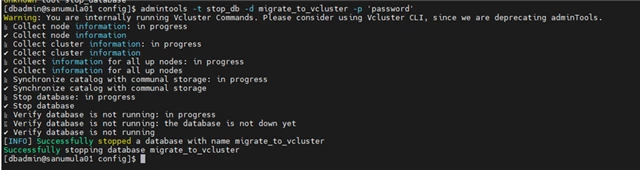
While Admintools CLI may still function after migrating to VCluster—by internally issuing VCluster CLI commands—it is strongly discouraged to use it. Doing so can lead to configuration mismatches or even database corruption, especially since Admintools CLI is going to be deprecated soon.
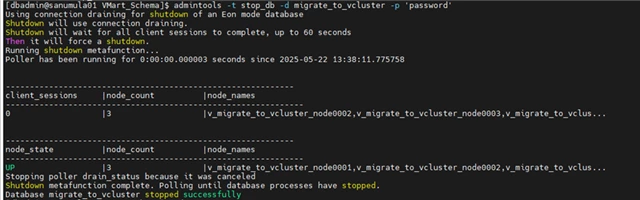
This example demonstrates that, post-migration, Admintools delegates operations to the VCluster CLI behind the scenes.
Stopping the database prior to migration:
|
[dbadmin@sanumula01 VMart_Schema]$ admintools -t stop_db -d migrate_to_vcluster -p 'password' Using connection draining for shutdown of an Eon mode database Shutdown will use connection draining. Shutdown will wait for all client sessions to complete, up to 60 seconds Then it will force a shutdown. Running shutdown metafunction... Poller has been running for 0:00:00.000003 seconds since 2025-05-22 13:38:11.775758
------------------------------------------------------------ client_sessions |node_count |node_names -------------------------------------------------------------- 0 |3 |v_migrate_to_vcluster_node0002,v_migrate_to_vcluster_node0003,v_migrate_to_vclus...
------------------------------------------------------------ node_state |node_count |node_names -------------------------------------------------------------- UP |3 |v_migrate_to_vcluster_node0001,v_migrate_to_vcluster_node0002,v_migrate_to_vclus... Stopping poller drain_status because it was canceled Shutdown metafunction complete. Polling until database processes have stopped. Database migrate_to_vcluster stopped successfully |
Stopping the database after migration:
|
[dbadmin@sanumula01 config]$ admintools -t stop_db -d migrate_to_vcluster -p 'password' Warning: You are internally running Vcluster Commands. Please consider using Vcluster CLI, since we are deprecating adminTools. ⣷ Collect node information: in progress ✔ Collect node information ⣷ Collect cluster information: in progress ✔ Collect cluster information ⣷ Collect information for all up nodes: in progress ✔ Collect information for all up nodes ⣷ Synchronize catalog with communal storage: in progress ✔ Synchronize catalog with communal storage ⣷ Stop database: in progress ✔ Stop database ⣷ Verify database is not running: in progress ⣯ Verify database is not running: the database is not down yet ✔ Verify database is not running [INFO] Successfully stopped a database with name migrate_to_vcluster Successfully stopping database migrate_to_vcluster [dbadmin@sanumula01 config]$
|